indoorView
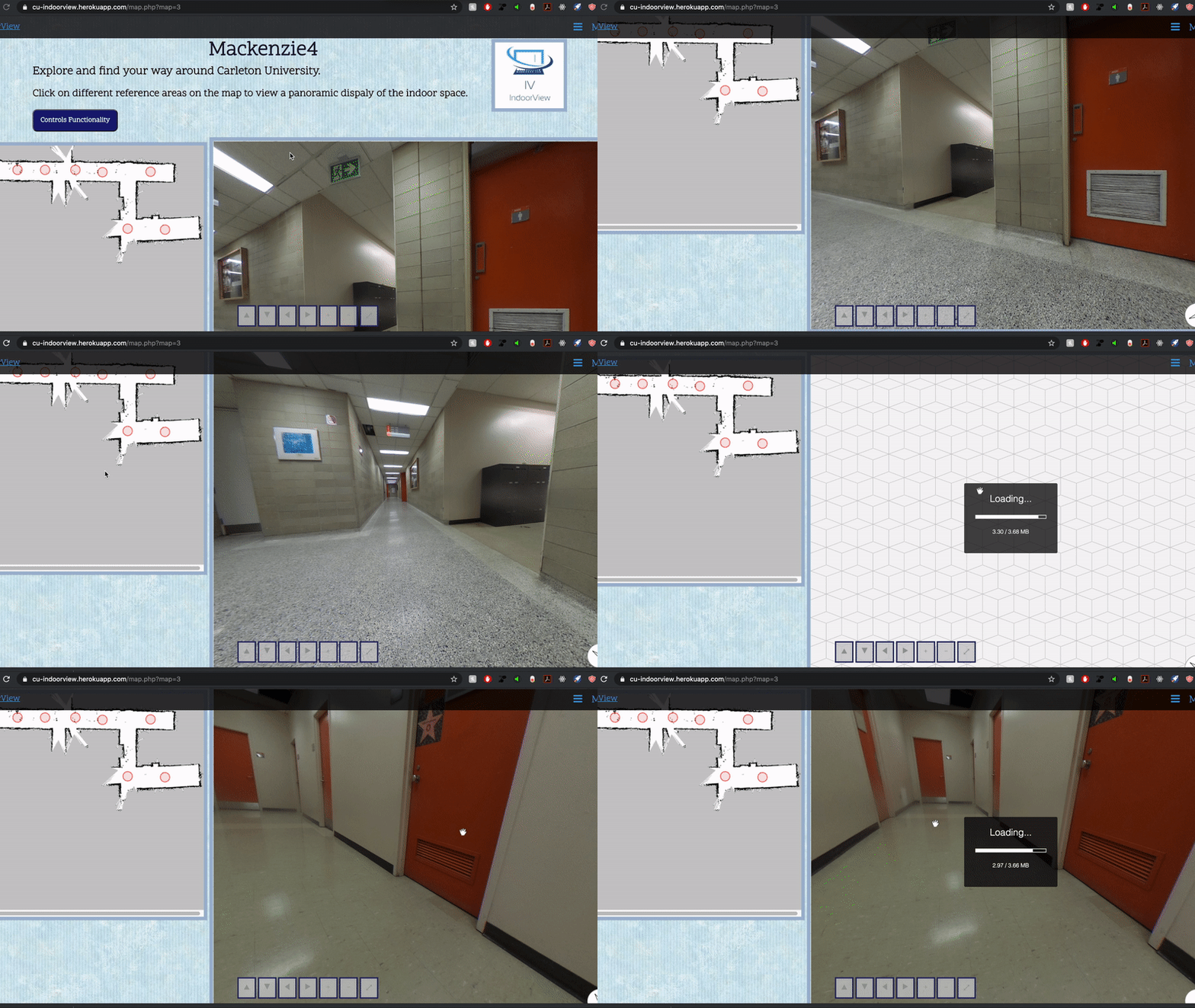
IndoorView is a Google StreetView Experience for indoor spaces. The systems includes using a robotic platform used to map a space and capture 360 degree images and a user facing web application to host the interactive map
indoorView
Demo
cu-indoorview.herokuapp.com
IndoorView is a Google StreetView Experience for indoor spaces. The systems includes using a robotic platform used to map a space and capture 360 degree images and a user facing web application to host the interactive map. This project is the 4th year engineering and design capstone project in the Systems and Computer Engineering department at Carleton University
Group Members
Dare Balogun
Gregory Koloniaris
Emad Arid
Zoya Mushtaq
Anannya Bhatia
Supervising Professor
Dr. Mohamed Atia
Deployment
This project is currently deployed on heroku here
Getting Started
The following instructions will show you how to get the system running and how to capture a map and host on the web
Prerequisites
- TurtleBot 3 Burger
- PC running Ubuntu 16.04 xenial with python2.7
- Ricoh Theta S
- Joystick controller (optional)
Instructions
-
Complete TurtleBot setup and Install ROS on your PC by following instructions here
- Clone this repository on your PC and cd into backend-src/remote-pc
(PC) $ git clone https://github.com/darebalogun/indoorView.git (PC) $ cd indoorView/backend-src/remote-pc -
Ensure the PC and the TurtleBot Raspberry Pi are connected to the same network
- Run NetworkConfig.py to perform network configuration on the PC. Note the IP address of the PC
(PC) $ python NetworkConfigPC.py - Start roscore server (in another terminal)
(PC) $ source ~/.bashrc (PC) $ roscore -
If using the optional joystick PC controller, connect it to your PC now
-
Copy folder turtlebot-pi onto the TurtleBot Raspberry Pi
- Cd into that folder on the Raspberry PI and perform network config by filling in the IP address of PC from step 4 (ctrl-X then Y to save) and running NetworkConfig.py
(Pi) $ nano NetworkConfigRPi.py (Pi) $ python NetworkConfigRPi.py - Run startup.sh
(Pi) $ source ./startup.sh -
Place the TurtleBot in the middle of the room on the floor where its able to navigate around the room
-
Open savetodatabase.py and configure database parameters
- Run mappoints.py then enter a name for the map
(PC) $ python mappoints.py Please enter a name for the map: [map_name] -
Navigate the robot around the area using the controller or using the keyboard. To use keyboard follow instructions here
-
Once the area is fully mapped, click publish point at the top of the RVIZ window then click on points of interest on the map. The map will autogenerate intermediary points spaced 0.5m apart
-
Go back to the terminal window running mappoints and press enter when done
- A new RVIZ navigation window should pop up. Estimate the initial pose
- Click 2D Pose Estimate near the top of the window
- Click (and hold) on the approximate location of the robot on the map
- Align the green arrow with the approximate orientation of the robot on the map
- Move the robot back and forth a few times to align the map with SLAM information
-
Return to the terminal window and press enter when done. The robot should navigate autonomously to the chosen points and capture images for the map
- Point co-ordinates and location of images should now be saved to the database